

Cursor AI or IntelliCode: Which AI Coding Assistant is Right for You?
Explore the complete comparison of Cursor AI vs IntelliCode, two leading AI coding assistants reshaping the way developers write, refactor, and understand code. This article dives deep into their technical capabilities, performance, privacy features, team tools, and advanced pro-level tips to help you choose the best AI companion for your workflow—whether you’re working on modern full-stack projects or enterprise-grade applications.
AI ASSISTANTAI/FUTUREPROGRAMMINGEDITOR/TOOLS
Sachin K Chaurasiya
11/7/20257 min read
Artificial Intelligence has made a strong entrance into modern development environments. Among the most notable tools are Cursor AI and Microsoft IntelliCode—both designed to make coding faster, smarter, and more intuitive. While they share the same purpose, they serve different audiences and offer distinct advantages. Let’s take a deeper look at what sets them apart.
What Is Cursor AI?
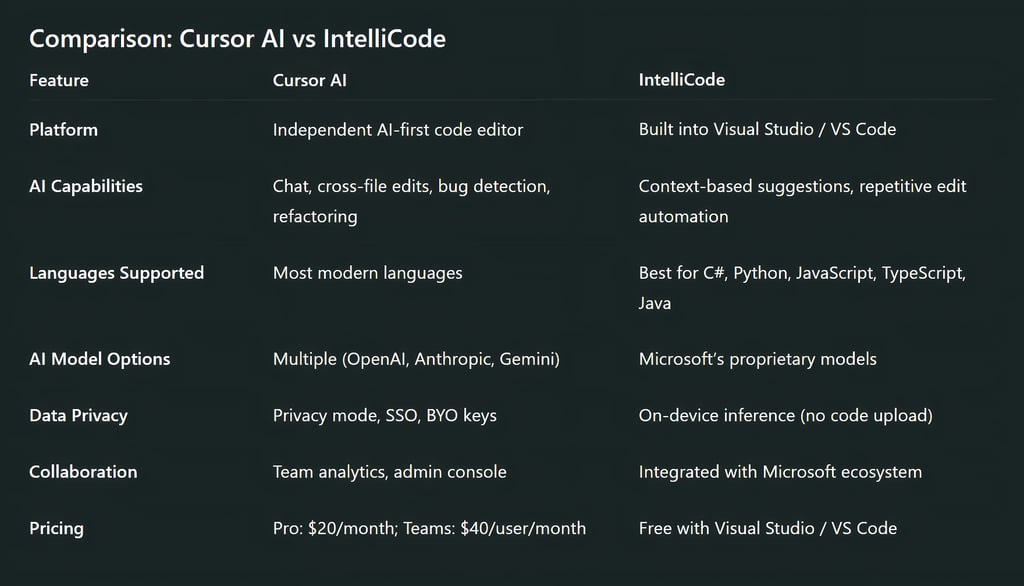
Cursor AI is a next-generation AI-powered code editor built specifically for developers who want seamless interaction between code and AI. Unlike traditional extensions, Cursor is a full editor that integrates chat-based assistance, code refactoring, bug detection, and context-aware edits directly into your workflow.
Cursor allows developers to chat with their codebase, understand complex logic, and perform refactors that span across multiple files. It supports popular programming languages and frameworks and gives users the freedom to choose their preferred AI model, such as OpenAI’s GPT, Anthropic’s Claude, or Google’s Gemini.
Key highlights
AI Chat Integration: Communicate with your entire repository, ask questions, and apply code changes instantly.
Cross-file Edits: Make updates across multiple files while maintaining logical consistency.
Bugbot: Automatically identifies and fixes bugs or offers suggestions within pull requests.
Team & Enterprise Support: Includes SSO, privacy mode, admin controls, and audit logs.
Model Flexibility: Use pre-integrated models or bring your own API keys for cost control and compliance.
Cursor is ideal for fast-moving teams, startups, and developers working across large or unfamiliar codebases who need deeper AI involvement.
What Is IntelliCode?
IntelliCode is Microsoft’s AI assistant built into Visual Studio and available as an extension for VS Code. It’s designed to improve productivity by enhancing IntelliSense, Microsoft’s traditional code suggestion system, with machine learning and context-aware recommendations.
Unlike Cursor, IntelliCode is not a separate editor; it lives inside your existing IDE. Its AI is trained on thousands of open-source projects, helping it predict your next lines of code and offer relevant completions.
Core features
Whole-line Completions: Suggests entire lines of code based on context.
Pattern Recognition: Learns from your own edits and suggests similar improvements.
Repetitive Edit Automation: In Visual Studio, it detects repeated changes and offers to apply them automatically.
Privacy: Whole-line suggestions for supported languages run locally, ensuring your code stays on your machine.
Multi-language Support: Works best with C#, Python, TypeScript/JavaScript, and Java.
IntelliCode is well-suited for enterprise developers, especially those using C#, who want subtle AI enhancements without changing their workflow or compromising code security.

Performance and Accuracy
Cursor AI focuses on reasoning and understanding larger codebases. Its chat-driven workflow allows it to handle complex logic, refactor large sections, and even generate or review tests. The tradeoff is that its suggestions may sometimes require verification—especially on large, production-level projects.
IntelliCode, on the other hand, prioritizes accuracy and reliability. Its goal is to complement human intuition rather than take over. By learning from your project and coding habits, it suggests completions that are consistent with your team’s style and structure.
For speed and creativity, Cursor AI wins.
For stability and conservative coding environments, IntelliCode performs better.
Privacy and Security
Cursor AI includes enterprise-grade security features such as
Role-based admin controls
SSO integration
Privacy mode to prevent external data sharing
Option to bring your own API keys
IntelliCode, meanwhile, keeps most of its processing local—especially for C# and Python—making it one of the most privacy-safe AI assistants for developers who handle sensitive codebases.
Pricing Overview
Cursor AI
Pro Plan: $20/month (usage-credit pool model)
Teams Plan: $40/user/month
Enterprise Plan: Custom pricing with pooled usage and full administrative features
IntelliCode
Free as part of Visual Studio and available as a free extension for VS Code.
Which One Should You Use?
Choose Cursor AI if you
Need a standalone AI-powered code editor
Work on multiple languages and modern frameworks
Want chat-driven, large-scale refactors and AI debugging
Run a team or startup focused on fast delivery and innovation
Choose IntelliCode if you
Work primarily in Visual Studio or VS Code
Develop in C#, Python, or JavaScript
Prefer minimal setup and local code privacy
Want stable, lightweight AI help without additional costs

Technical Architecture & Integration Depth
Cursor AI
AI Core: Cursor relies on large language models (LLMs) such as GPT-4, Claude 3, or Gemini 1.5, offering token-level reasoning, multi-file memory, and contextual awareness across repositories.
Editor Engine: Built on a VS Code-compatible architecture, Cursor supports common extensions, keybindings, and UI layouts. That means developers switching from VS Code will find it instantly familiar.
Context Handling: Cursor indexes your entire codebase to give the AI a “global understanding.” When you ask for a fix, it looks beyond the open file—an ability most plugins lack.
Diff-based Edits: When Cursor makes changes, it applies them as diff patches, allowing you to review before accepting—perfect for maintaining control during team development.
IntelliCode
Model Training: IntelliCode models are trained on thousands of high-quality open-source GitHub repositories. This means suggestions are derived from real-world, proven code patterns.
Integration Layer: It’s built directly into Visual Studio’s IntelliSense engine, which means no performance drop or conflicting extensions.
Repetitive Edit Detection (VS): IntelliCode tracks recent changes and automatically identifies repeated edit patterns. This feature uses token-based learning locally to extend your change to similar code sections.
Offline AI Execution: For languages like C# and Python, IntelliCode runs locally without sending your source code outside your machine, reducing data risk.
AI Model Context & Token Limits
Cursor AI
Cursor uses LLMs capable of handling long context windows (sometimes over 200K tokens), allowing it to “remember” large sections of your repository. This helps with cross-file reasoning and large-scale refactors.
Example: You can ask Cursor to “find and update all deprecated functions” across your repo, and it will do so accurately using the entire project context.
Pro Tip: Enable auto-context indexing for better accuracy. It might take extra memory initially but results in smarter refactors.
IntelliCode
IntelliCode focuses on short-context precision rather than long-context reasoning. It only considers the current buffer or your recent edits to suggest code.
Pro Tip: Keep your local language server and IntelliCode models updated. Microsoft periodically pushes improved local models that offer better predictions with minimal latency.
Performance Optimization
Cursor AI
Works best on M1/M2 Macs or high-memory systems (16 GB+) since it uses local caching and context indexing.
You can limit model calls per session for lighter workloads or testing mode.
Pro Tip: If your team uses private APIs or custom libraries, provide a short README.md summary at the repo root. Cursor parses documentation files for better context, improving its accuracy.
IntelliCode
Optimized for minimal CPU/GPU usage since it’s embedded within Visual Studio.
For best performance, ensure your IntelliSense database is fully built—IntelliCode uses it to improve ranking precision.
Pro Tip: Combine IntelliCode with Live Share in Visual Studio for collaborative sessions—your AI suggestions remain personalized but still integrate well during pair programming.
Advanced Use Cases
Cursor AI
AI-Driven Refactoring: You can perform large code migrations—like moving from React Class Components to Hooks, or Python 2 to Python 3—using guided chat commands.
Automated Testing: Ask Cursor to generate test cases for untested modules. It can create unit or integration tests using frameworks like Jest, Pytest, or Mocha.
Continuous Debugging: Bugbot can scan your PRs and highlight potential logic or security issues before merge.
Pro Tip: When working in a team, enable Team Mode Analytics to identify which commands developers use most. It helps improve workflow efficiency and standardize team-level AI habits.
IntelliCode
Adaptive Training: IntelliCode can learn from your own repository using a local training model. You can create custom IntelliCode models that understand your internal APIs and coding style.
Pattern Extension: For repetitive edits, it can automatically detect and replicate the same logical changes across multiple files.
Pro Tip: In Visual Studio, combine IntelliCode with CodeLens for complete context—AI suggestions, references, and commit history all visible in one glance.
Data Privacy & Compliance Tips
Cursor AI
Use BYO API keys to retain data ownership.
In team or enterprise settings, enable Privacy Mode to prevent sending private snippets for model fine-tuning.
For regulated industries, Cursor supports on-prem API routing—ideal for banks, healthcare, or defense-related projects.
IntelliCode
Runs fully within Microsoft’s secure ecosystem, and for supported languages, suggestions never leave your machine.
For hybrid teams, you can manage access using Azure Active Directory policies.
Pro Tip: Disable telemetry collection in VS if your organization has strict compliance rules.
Productivity Tips from Experienced Developers
For Cursor AI Users:
Use “Explain code in my own words” before debugging legacy sections—it saves hours of mental tracing.
Combine Cursor’s chat history with code commits to create AI-assisted changelogs.
Use “compare models” mode to see how GPT vs Claude handles the same prompt; this is great for quality assurance in team settings.
For IntelliCode Users:
Pair IntelliCode with GitHub Copilot Chat for broader AI reasoning while maintaining IntelliCode’s predictive precision.
Regularly retrain IntelliCode custom models if your codebase changes significantly.
Use IntelliCode suggestions in combination with EditorConfig—this ensures your AI-assisted edits follow project-wide formatting rules.
Integration and Workflow Synergy
Cursor AI + GitHub: Syncs natively with GitHub for AI-assisted PR review and in-line code correction suggestions.
IntelliCode + Azure DevOps: Integrates seamlessly with Microsoft’s CI/CD ecosystem for consistent coding standards and safe automation.
Pro Tip: For hybrid workflows, you can run Cursor as your primary code editor and still push directly to GitHub or Azure pipelines—both tools support standard Git operations and version control.
Future-Ready Development
Cursor AI is evolving toward agentic development, where AI autonomously identifies issues, writes patches, and validates them through tests.
IntelliCode is expected to become more context-rich as it merges deeper with GitHub Copilot and Visual Studio’s future AI stack.
Pro Tip: If your project involves large-scale microservices or cross-language systems, consider using both tools—Cursor for AI-driven automation and IntelliCode for precise, local predictions. Together, they form a balanced, intelligent development environment.
Both Cursor AI and IntelliCode are powerful tools, but they cater to different developer mindsets.
Cursor AI reimagines the development process, offering deep AI interaction and project-wide automation.
IntelliCode enhances existing workflows by providing subtle, privacy-friendly suggestions that make coding more efficient within Microsoft’s ecosystem.
If you’re a developer chasing innovation and speed, Cursor AI is a strong choice.
If your focus is consistency, security, and minimal disruption, IntelliCode remains a dependable companion.
Subscribe to Frontier Intelligence
All © Copyright reserved by Accessible-Learning Hub
| Terms & Conditions
Accessible Learning Hub — Actionable clarity for high-agency minds.
Weekly breakdowns on AI breakthroughs, capital flow, and human performance systems. Zero fluff.